
Cursors and Crosshairs
Customizing your Roblox experience has never been more accessible, thanks to third party tools like Voidstrap for roblox . While Roblox provides a standard interface, many players seek a more personalized touch, particularly when it comes to the most vital tool in their arsenal: the mouse cursor and crosshairs
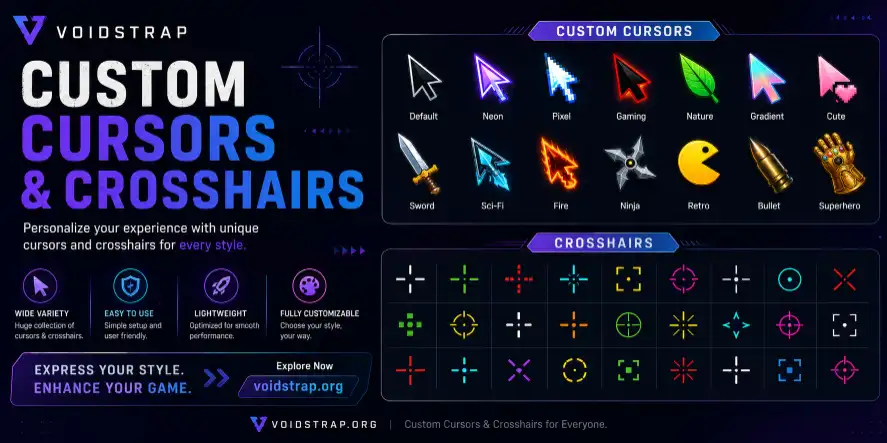
Custom Cursors & Crosshairs?
Launcher includes a built-in crosshair customization feature inside the Modifications section. Instead of using external crosshair software, players can directly create and apply their own cursor styles within Roblox.
The system allows you to customize:
- Cursor shape
- Crosshair color
- Outline color
- Cursor size
- Line thickness
- Center gap
- Opacity
- Shareable crosshair codes
You can also preview your cursor live before launching Roblox.
Download Voidstrap Crosshair Codes

Green Crosshair

Red Crosshair

White Circle

White Dot

Green Dot

Pink Crosshair

Modern Crosshair

Aqua Crosshair

Aqua Dot

Blue Huge Crosshair

Dark Blue Crosshair
How To Enable Custom Cursor/Crosshairs
Open Voidstrap
Launch Voidstrap normally from your desktop or start menu. You will see the main dashboard click on Launch Roblox
Open Settings
Click the Settings button from the main menu. Inside the settings sidebar, locate and open: Modifications. This section contains all Roblox visual and gameplay modifications
Open Custom Crosshair
Inside the Presets section, expand: Custom Crosshair. You will now see all cursor customization options.
How To Import Crosshair Codes
Importing a custom cursor code is extremely simple.
- Copy a crosshair code
- Open the Cursor Code section
- Paste the code into cursor code input section
- Click Apply
- Press Save and Launch
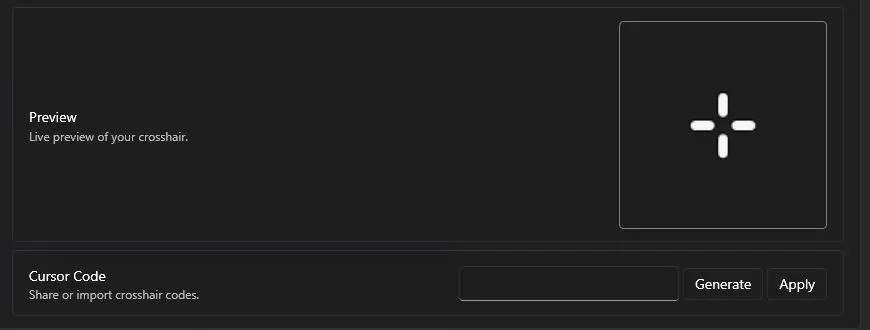
Your custom cursor will now appear inside Roblox.
Generate Your Own Crosshair Codes
You can also generate your own crosshair code. First you have to make a customize crosshair or cursor from the customization. After this click on generate to get a shareable code. which you can use later or share with friends. Happy Robloxing
Final Thoughts
Voidstrap makes custom crosshair creation much easier compared to traditional Roblox cursor mods. The built-in customization system, live preview, and shareable cursor codes allow players to create professional-looking FPS crosshairs in just a few clicks.
Whether you prefer a minimal dot cursor or a competitive Valorant-style setup, Voidstrap gives you full control over your Roblox aiming experience.
For an even more personalized Roblox interface, you can also customize your game fonts using our Fonts Guide, allowing you to match your crosshair, cursor, and UI style for a complete visual overhaul.
For most players, using a small white crosshair with a black outline provides the best balance between visibility and precision.


